Overview
Use whichever path matches how you’re working. Each path lands on the same Appointment form; the only difference is what’s preloaded and whether you can see availability first.
Quick Compare:
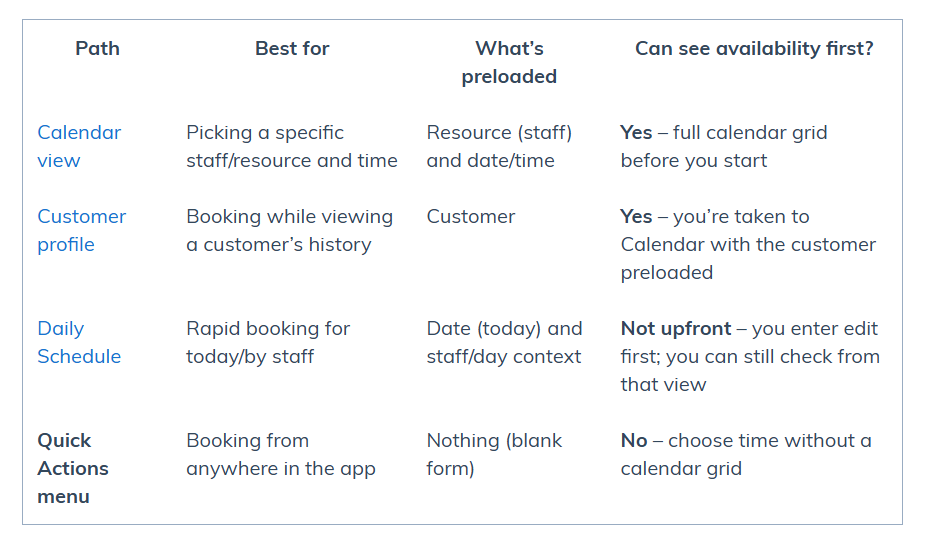
Tip: If you don’t know availability, use Calendar view. If you already know who/when, use Daily Schedule or Quick Actions.
1. Create from Calendar view (preloads resource and shows availability)
Best for: avoiding conflicts and visually scanning openings.
- Go to Appointments › Calendars.
- (Optional) Filter/select the resource (staff) you’re booking for.
- Click the desired time slot on the grid.
- The Appointment form opens with resource and date/time filled in.
- Complete the form (see Complete the Appointment form below) and Book appointment.
Pros: Visual, fastest way to avoid double-booking.
Consider: One extra click if you already know the exact slot.
2. Create from a Customer profile (preloads the customer)
Best for: booking while reviewing a customer’s details, history, or assets.
- Open the customer’s profile.
- Click New appointment (or Book appointment) on the profile.
- You’ll land on Calendars with the customer preloaded.
- Click a time slot, then finish the Appointment form and Book appointment.
Pros: Guarantees the right customer and keeps context handy.
Consider: One extra hop if you already know the time/resource.
3. Create from Daily Schedule (goes straight to edit)
Best for: quick entry for the current day or a specific staff member.
- Go to Appointments › Daily Schedule.
- Click Book new appointment.
- The Appointment form opens immediately. Choose date/time, resource, and other details.
- (Optional) Use the in-form availability check to confirm no conflicts, then Book appointment
Pros: Fastest path when you already know who/when.
Consider: You don’t see the calendar grid first.
4. Create from the Quick Actions menu (from anywhere)
Best for: starting a booking without leaving your current task.
- Open the Quick Actions menu (top bar).
- Choose New appointment.
- The Appointment form opens blank. Select customer, service, resource, date/time, etc.
- (Optional) If you’re unsure on availability, switch to Calendars in another tab to verify, then return and Book appointment.
Pros: Always available; zero navigation.
Consider: No upfront calendar view; best used when you already know the slot.
Complete the Appointment form (common to all paths)
Customer: Search/select the customer. Their assets (if applicable) will appear.
Date & time: Confirm or adjust.
Resource (staff): Pick who’s performing the service (determines the calendar the booking lands on).
Service(s): Select one or more services. (Pricing can be adjusted later at checkout.)
Tags & color (optional): Add a tag and color-code the booking. (You can also set colors per resource in settings.)
Reminder window: Choose when automatic SMS reminders go out via your Smart Number.
Asset (if used): Assign the asset receiving service.
Recurring (optional): Check Recurring and configure the repeat pattern.
Deposit (optional): Use the dropdown arrow on Book appointment to Book and collect deposit.
Book: Click Book appointment to finish.
Troubleshooting & notes
If you don’t see a staff/resource in Calendars, check user permissions or calendar filters.
Can’t find the customer? Ensure they exist in Customers or create them during booking.
Conflicts: Calendar view prevents most conflicts. Daily Schedule/Quick Actions rely on your selections; if conflicts are allowed by settings, you may see warnings but still be able to save depending on configuration.
Was this article helpful?
That’s Great!
Thank you for your feedback
Sorry! We couldn't be helpful
Thank you for your feedback
Feedback sent
We appreciate your effort and will try to fix the article