Quick compare
See all four ways to create an appointment → [Overview Article]
Steps – Quick Actions Menu
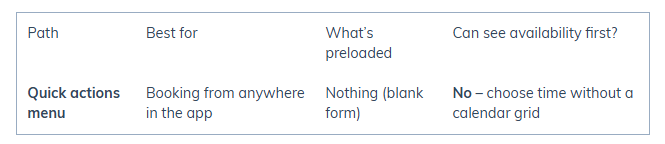
Best for: Starting a booking without leaving your current task.
Open the Quick Actions menu (top bar).
Select New appointment.
The Appointment form opens blank.
Select the customer, service, resource, and date/time.
(Optional) If unsure of availability, check the Calendars view in another tab.
Complete the Appointment form and click Book appointment.
Appointment Form Fields (common to all paths)
Customer: Search/select the customer. Their assets (if applicable) will appear.
Date & time: Confirm or adjust.
Resource (staff): Select who is performing the service.
Service(s): Select one or more services. (Pricing can be adjusted later at checkout.)
Tags & color (optional): Add tags or assign a color code.
Reminder window: Set SMS reminders via your Smart Number.
Asset (if used): Assign the asset.
Recurring (optional): Check Recurring and configure repeat pattern.
Deposit (optional): Use the dropdown on Book appointment to collect a deposit.
Book: Click Book appointment to finish.
This section is shared across all four methods. See the Overview Article for details and links to other booking methods.
Pros & Considerations
Pros:
Accessible from anywhere in the app.
No navigation required.
Consider:
No upfront calendar grid, so availability must be confirmed separately.
Troubleshooting
If you frequently need to check availability first, use Calendar View or Customer Profile instead.
If Quick Actions is not visible, check user permissions or menu settings.
Was this article helpful?
That’s Great!
Thank you for your feedback
Sorry! We couldn't be helpful
Thank you for your feedback
Feedback sent
We appreciate your effort and will try to fix the article