Quick compare
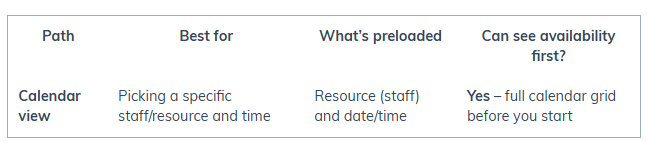
See all four ways to create an appointment → [link to overview article]
Steps – Calendar View
Best for: Avoiding conflicts and visually scanning openings.
Go to Appointments › Calendars.
(Optional) Filter or select the resource (staff) you want to book for.
Click the desired time slot directly on the calendar grid.
The Appointment form opens with resource and date/time prefilled.
Complete the Appointment form (see below) and click Book appointment.
Appointment Form Fields (common to all paths)
Customer: Search/select the customer. Their assets (if applicable) will appear.
Date & time: Confirm or adjust.
Resource (staff): Select who is performing the service.
Service(s): Select one or more services. (Pricing can be adjusted later at checkout.)
Tags & color (optional): Add tags or assign a color code.
Reminder window: Set SMS reminders via your Smart Number.
Asset (if used): Assign the asset.
Recurring (optional): Check Recurring and configure repeat pattern.
Deposit (optional): Use the dropdown on Book appointment to collect a deposit.
Book: Click Book appointment to finish.
Pros & Considerations
Pros:
Full visual view of all availability.
Easiest way to avoid double-booking.
Consider:
Slightly slower if you already know the exact time and resource without needing to check availability.
Troubleshooting
If a resource/staff doesn’t appear, check user permissions or calendar filters.
If a customer can’t be found, create them during booking or ensure they exist in Customers.
If you see a conflict warning, your system settings may still allow saving depending on configuration.
Was this article helpful?
That’s Great!
Thank you for your feedback
Sorry! We couldn't be helpful
Thank you for your feedback
Feedback sent
We appreciate your effort and will try to fix the article