Overview
The Punchey mobile app allows you to quickly send text messages to your customers directly from your mobile device. This makes it easier to communicate with clients while on the go, confirm appointments, provide updates, and stay connected with your customers in real time.
Why Is This Important?
Using the mobile messaging feature can help your business:
Communicate with customers quickly and efficiently
Send updates while working in the field
Improve customer response times
Keep conversations organized within the app
Maintain better customer engagement and service
Sending a Text Message
Follow these steps to send a text message using the mobile app:
Open the Punchey App
Select Messages
Tap the Pen and Paper icon located in the upper-right corner to create a new message
Search for and select the customer’s name
Type your message
Send the text message
Adding a Customer Contact
If the customer’s phone number has not yet been added to your contacts, a pop-up notification will appear prompting you to save the contact before sending a message.
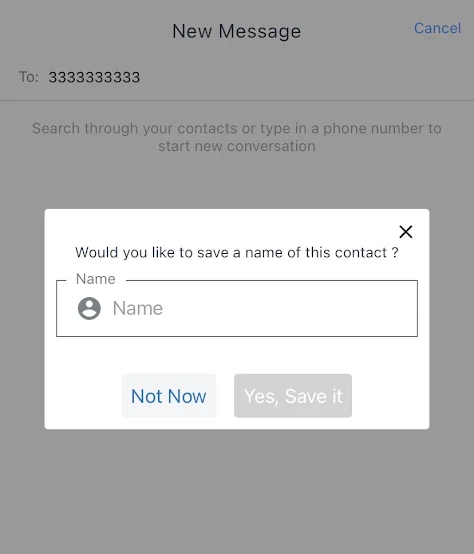
Simply follow the prompts to add the customer’s contact information and continue texting.
Was this article helpful?
That’s Great!
Thank you for your feedback
Sorry! We couldn't be helpful
Thank you for your feedback
Feedback sent
We appreciate your effort and will try to fix the article