Consent Forms: Sending & Completing
Overview
There are multiple ways to complete a consent form in the system. You can send the form to the client electronically or complete it directly using the SignPad.
All completed consent forms are saved to the customer’s profile for recordkeeping and compliance purposes.
How to Send or Complete a Consent Form from the Customer Profile
Go to the customer’s profile.
From the Actions Bar, select the form you would like to complete.
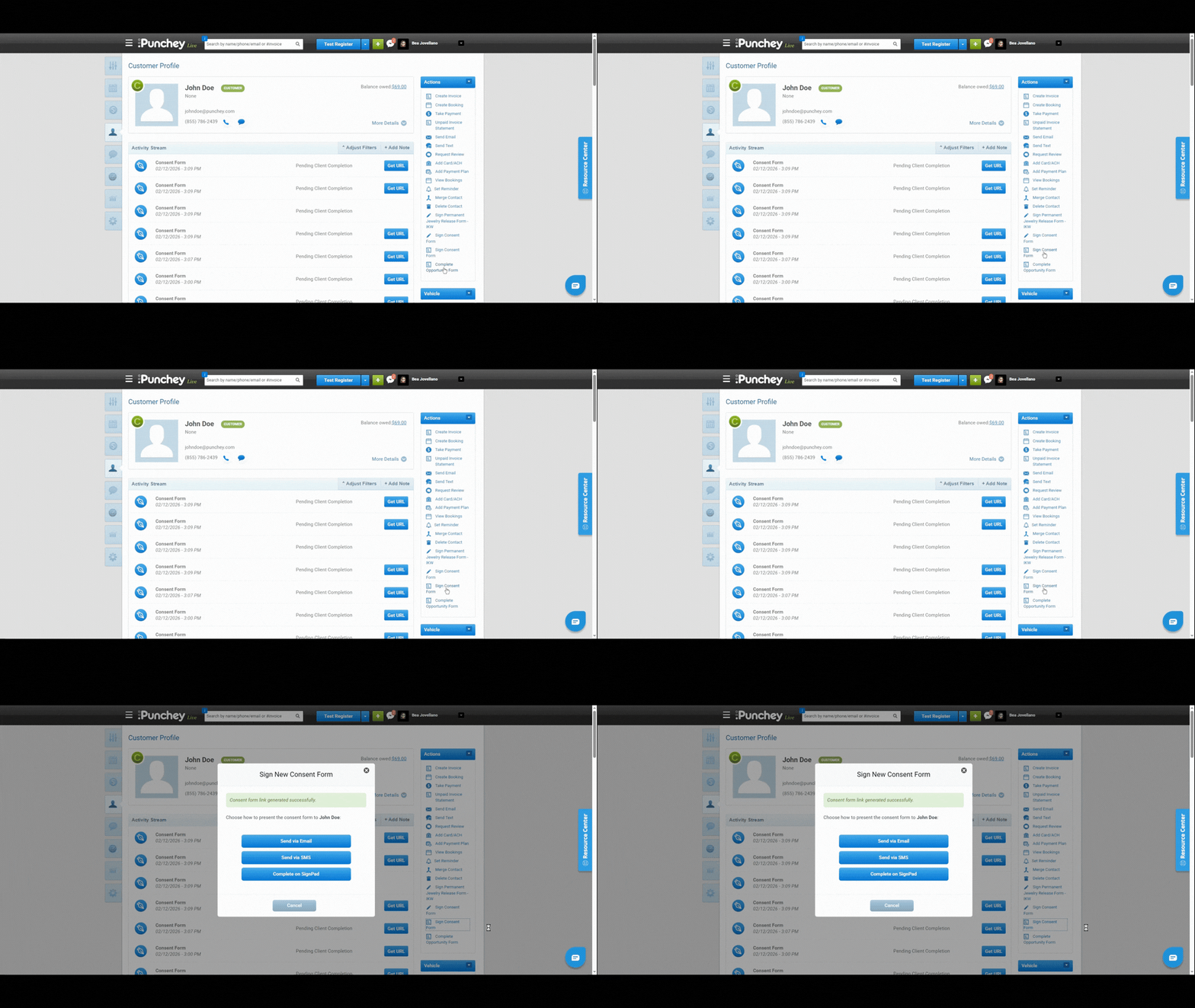
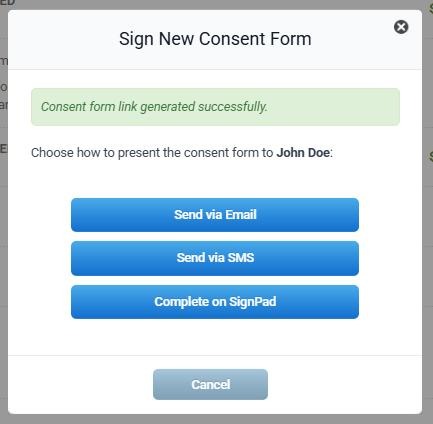
Choose one of the available options:
Send via Email
This sends a unique form link to the client’s email address.Send via Text
This sends a unique form link to the client’s phone number.Complete on SignPad
You will be prompted to select which register your SignPad is connected to.
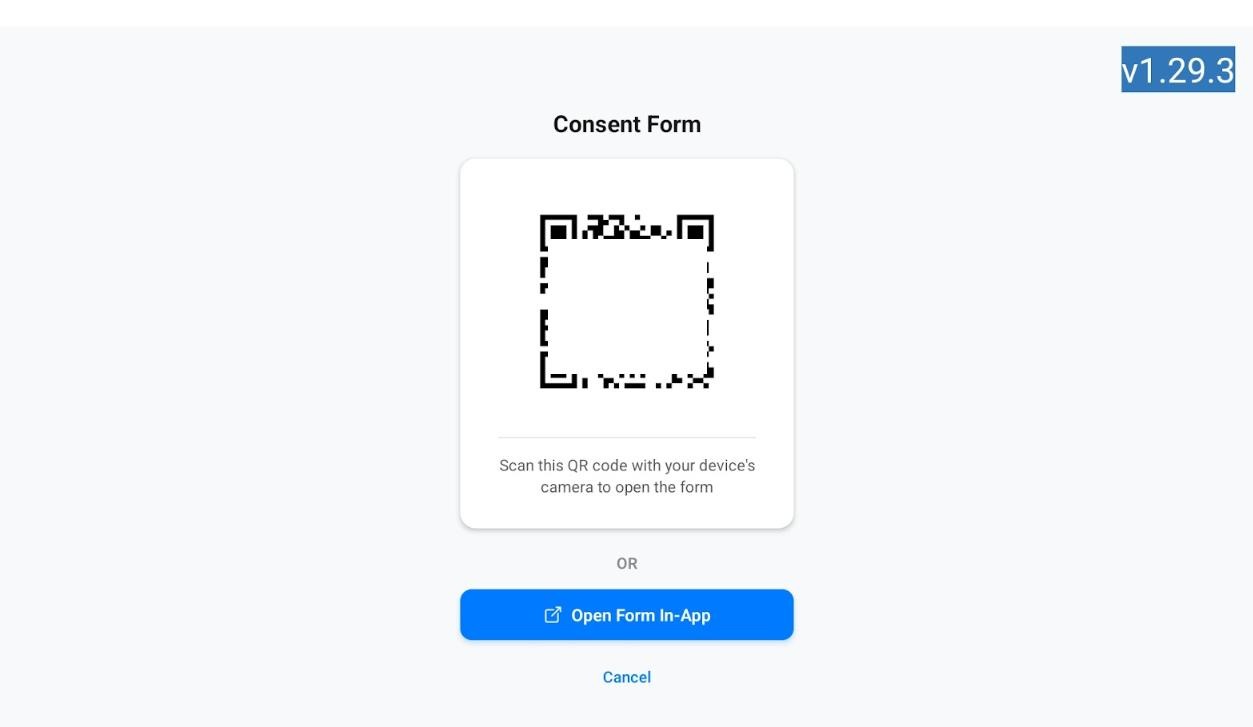
If completing on the SignPad, the client can:
Fill out and sign the form directly on the SignPad, or
Scan the QR code using their phone, which will direct them to the secure unique link to complete the form.
What Should the Screen Look Like After Sending the Form?
After the form has been successfully submitted, a “Thank You” message will appear on the screen confirming the submission.
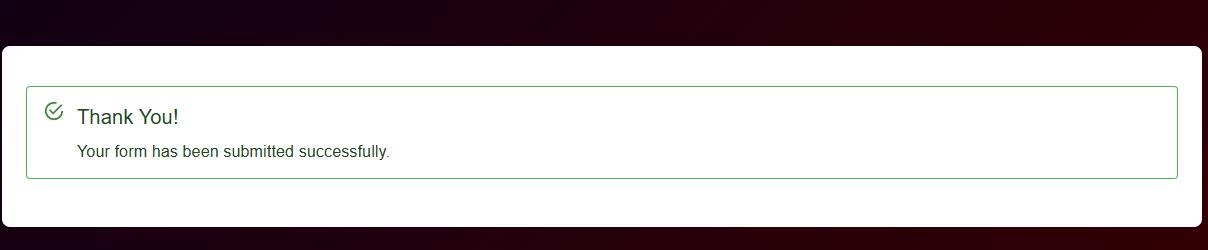
The unique link directs the client to a secure page where they can complete and submit the form. Once submitted, the screen will display a confirmation message letting them know their response has been received.
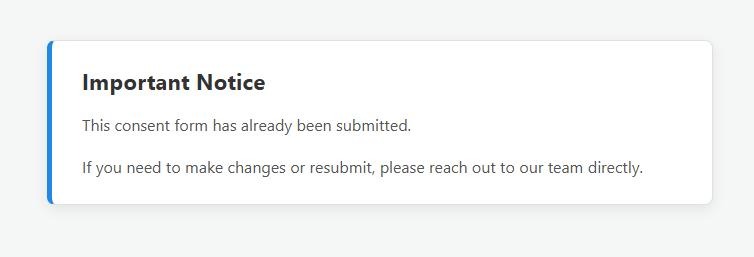
If they attempt to open and use the same unique link again, the link will no longer allow another submission and will display a notice indicating that the form has already been submitted.
If you do not see a confirmation message, refresh the screen and verify that the form appears on the customer’s profile before proceeding.
How to Complete a Consent Form Directly on the SignPad App
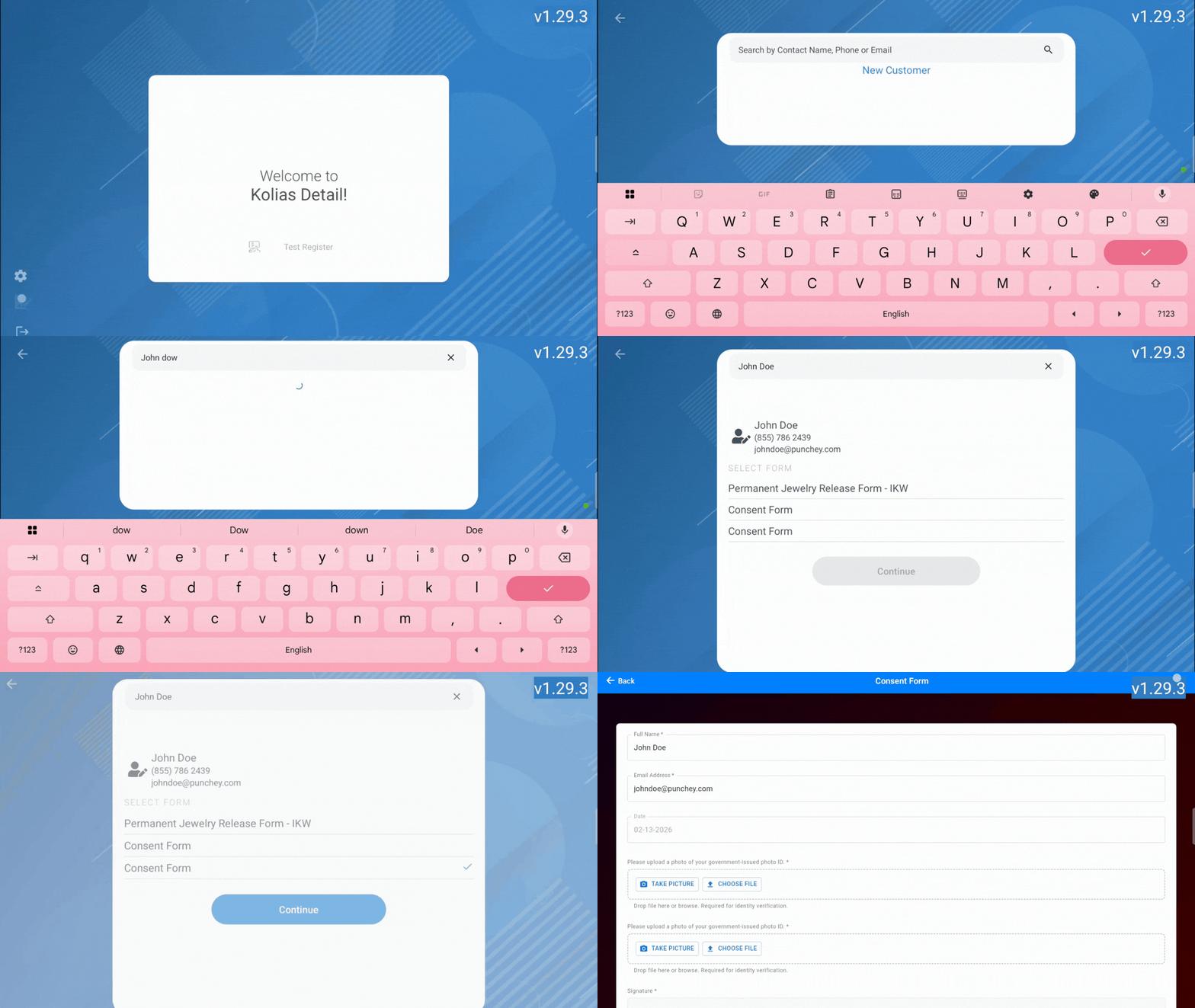
On the left side of the app, select the paper icon with a pen.
Enter your access code.
Search for the customer’s name if they are an existing customer with a profile.
If the client is new, select New Customer.
Select the form you would like to complete.
Click Continue.
Once Submitted
The completed form will appear on the customer’s profile.
If the client is new, a new profile will be generated automatically, and the form will be saved there.
Click the paper icon to the right of the form to view the completed document.
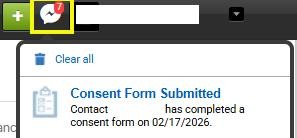
A notification on your dashboard will appear confirming that the consent form has been successfully submitted and recorded.
Internal Checks
Before moving on, confirm the following:
Did you confirm the form was successfully sent?
Ask the client to confirm whether they received the email or text. You can also check their profile and look for the “Pending Client Completion” status in their activity stream.

Did you confirm the form saved on the contact record?
Refresh the client’s profile and check that the form appears as completed under their record.
After completion, did you verify the signature appears on the final version?
Open the saved form from the customer’s profile and review the document to ensure the signature is clearly displayed.
If the customer was new, did you confirm their profile was created correctly?
Search for the customer’s name to confirm their profile was generated and verify that the completed form is attached.
Taking a few seconds to complete these checks helps prevent missing consent documentation later.
Quick Troubleshooting
The Form Didn’t Arrive on the SignPad
Confirm the correct register was selected when sending the form.
Make sure you are using the updated SignPad device.
Refresh the SignPad app and try again.
Check that your internet connection is stable.
If needed, resend the form or fully close and reopen the app.
The Customer’s Name Doesn’t Exist
Confirm the correct spelling when searching for the customer.
Check whether the profile may have been created under a different phone number or email address.
If the client is new, select New Customer and complete the form to automatically generate their profile.
Why This Matters
Consent forms are legal documentation. They protect both the business and the client by confirming acknowledgment and agreement before services are provided.
The following information stays on record:
The completed form
The client’s signature and ID
The date and time of submission
The form attached directly to the customer’s profile
Ensuring forms are properly sent, completed, and saved helps maintain compliance, reduce liability, and keep accurate client records.
Was this article helpful?
That’s Great!
Thank you for your feedback
Sorry! We couldn't be helpful
Thank you for your feedback
Feedback sent
We appreciate your effort and will try to fix the article