1. View Customer Profile & Select Balance Owed

Find the contact whose statement you would like to view, then go to their profile. In the upper right of the screen, click on the Balance Owed.
2. View Customer Statement
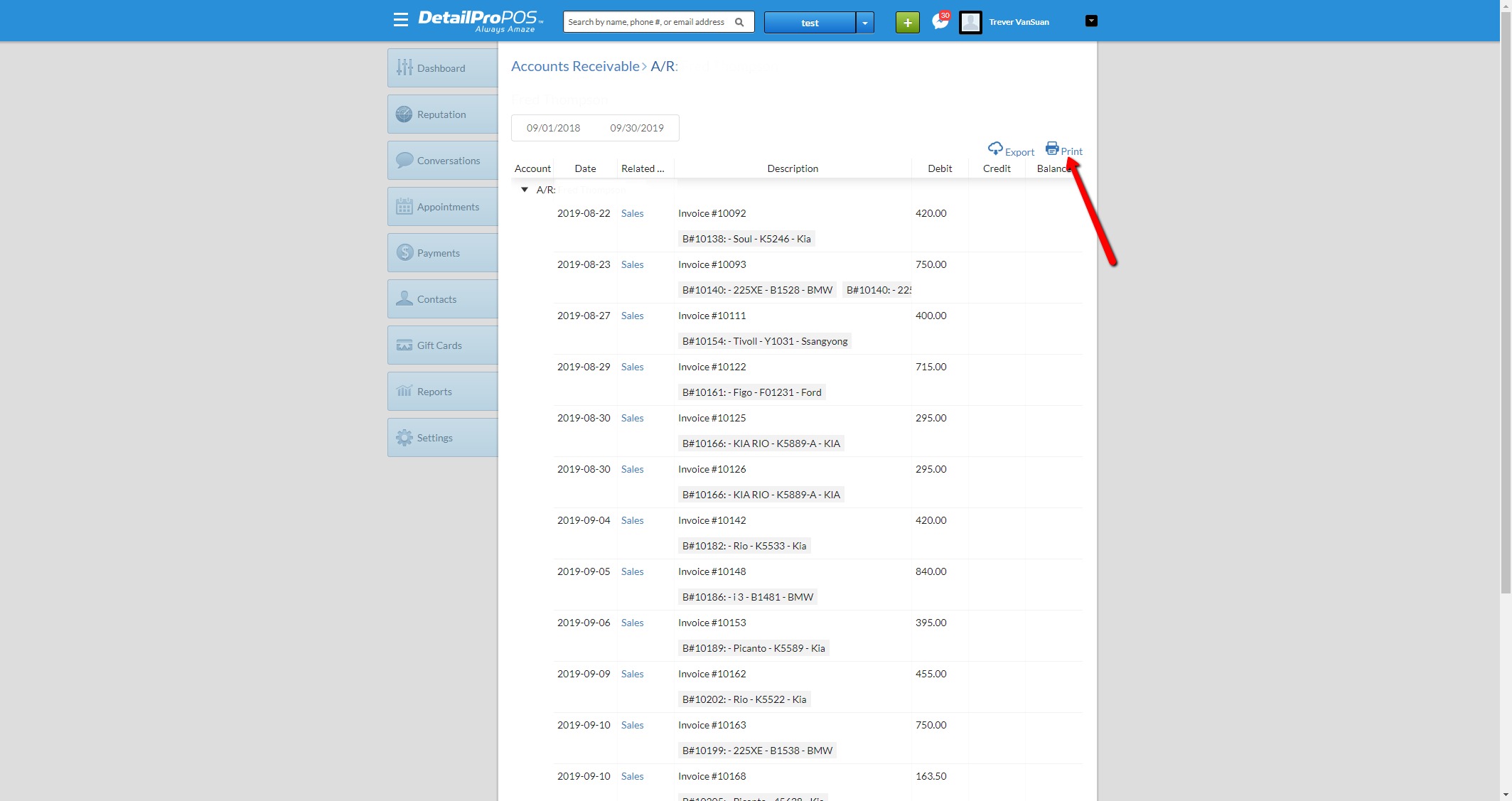
You are now viewing the customer’s account statement! From this page, you can export to an excel or print the statement for your use. For this example, let’s choose print.
3. Save as PDF
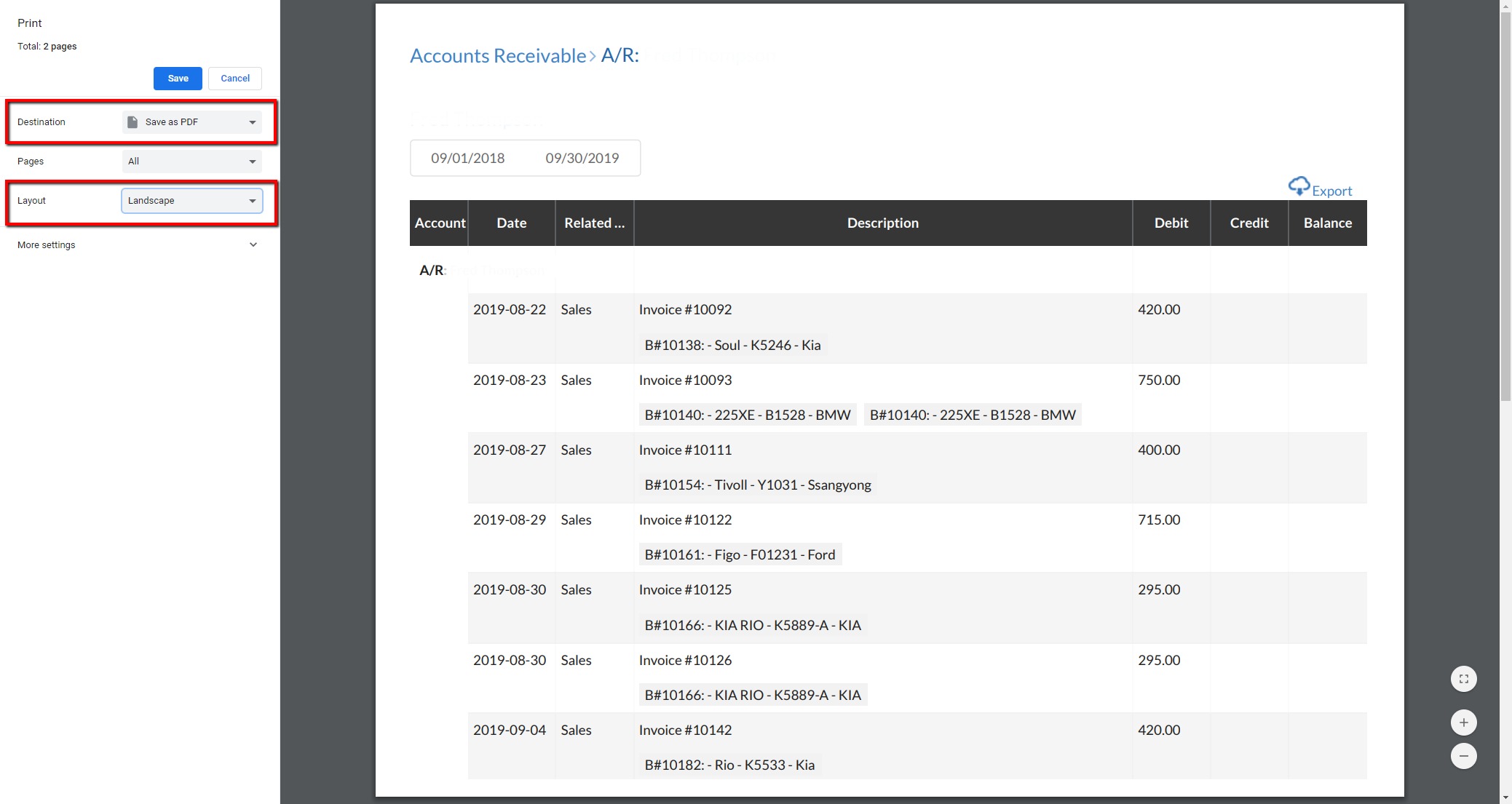
Now a print screen dialogue will pop up. On the left side, click the “Destination” drop down, select Save as PDF, then save. IMPORTANT: Make sure the “Layout” is set to landscape for optimal formatting.
4. Email Attachment to Customer
The PDF will be saved to your computer. You can now email A/R sheet to your customer by adding the PDF as an attachment.
Was this article helpful?
That’s Great!
Thank you for your feedback
Sorry! We couldn't be helpful
Thank you for your feedback
Feedback sent
We appreciate your effort and will try to fix the article