Overview
Punchey allows you to create and send financing applications through Affirm directly from the platform. This gives customers flexible payment options alongside their service estimates.
This guide walks you through how to create, send, and manage an Affirm financing application.
Steps to Create an Affirm Financing Application
1. Go to the Checkout Section
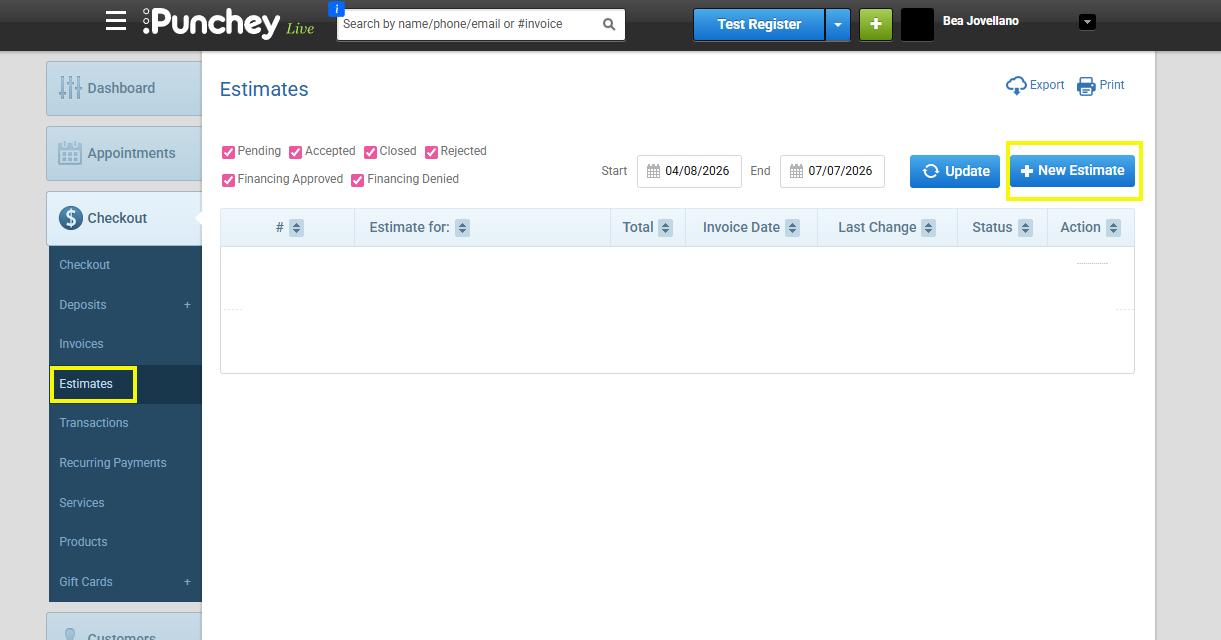
From your Punchey dashboard, click Checkout to begin the process.
2. Open the Estimates Tab
Select the Estimates tab to create a new estimate.
3. Create a New Estimate
Click New Estimate to start a financing application.
4. Search for the Customer
Click the search field labeled “Search customer name, phone # or email”
Enter the customer’s name
Select the correct customer from the results
Make sure the customer profile includes complete and accurate contact details, including:
Phone number
Email address
Complete billing address
This information is required for the Affirm financing application.
5. Add Estimate Details
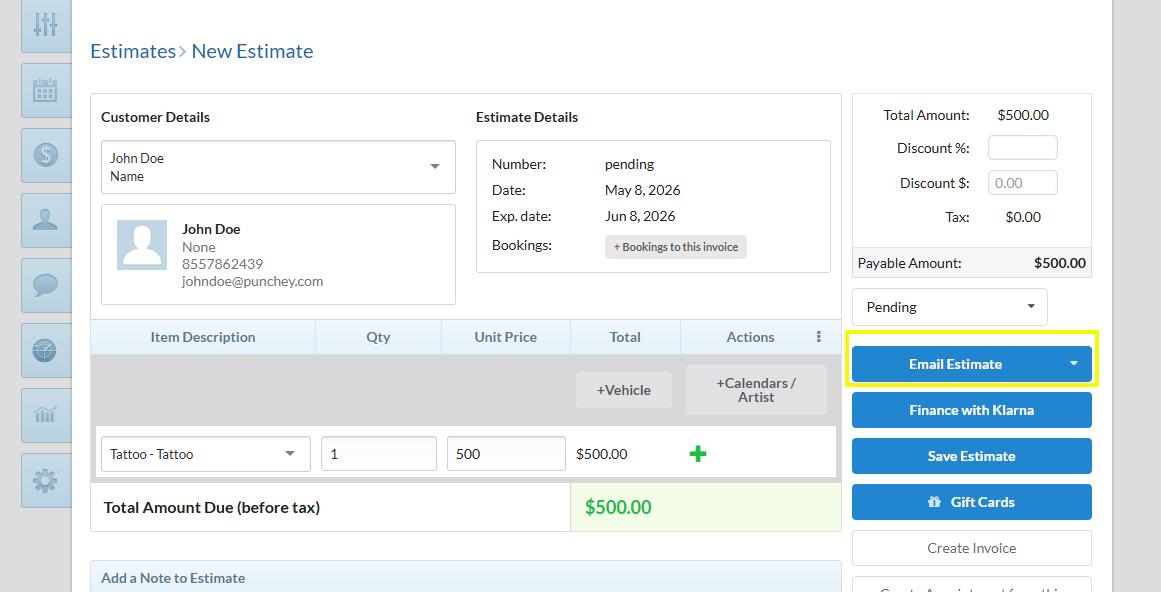
Click the “Enter Name…” field
Enter a name or description for the estimate
Select the appropriate service
6. Enter the Estimate Amount
Click the amount field
Enter the total amount for the estimate
7. Email the Estimate
Select Email Estimate to send the estimate to the customer.
Make sure Email Estimate is selected to avoid any errors during the Affirm financing process.
The customer must first approve the estimate before Affirm financing can be offered.
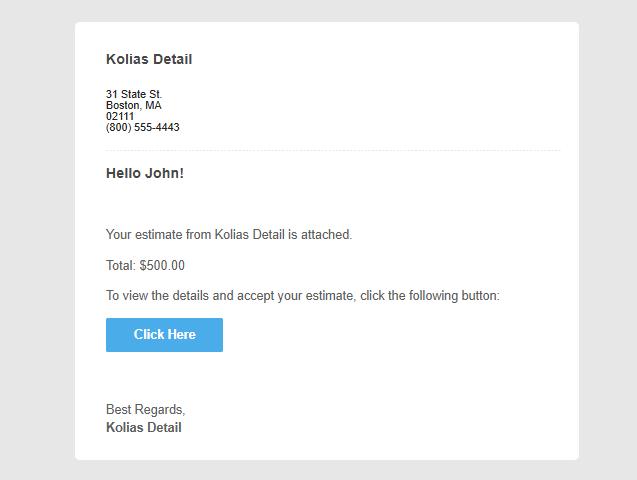
8. Wait for Customer Approval
The customer must review and approve the estimate before financing can be initiated.
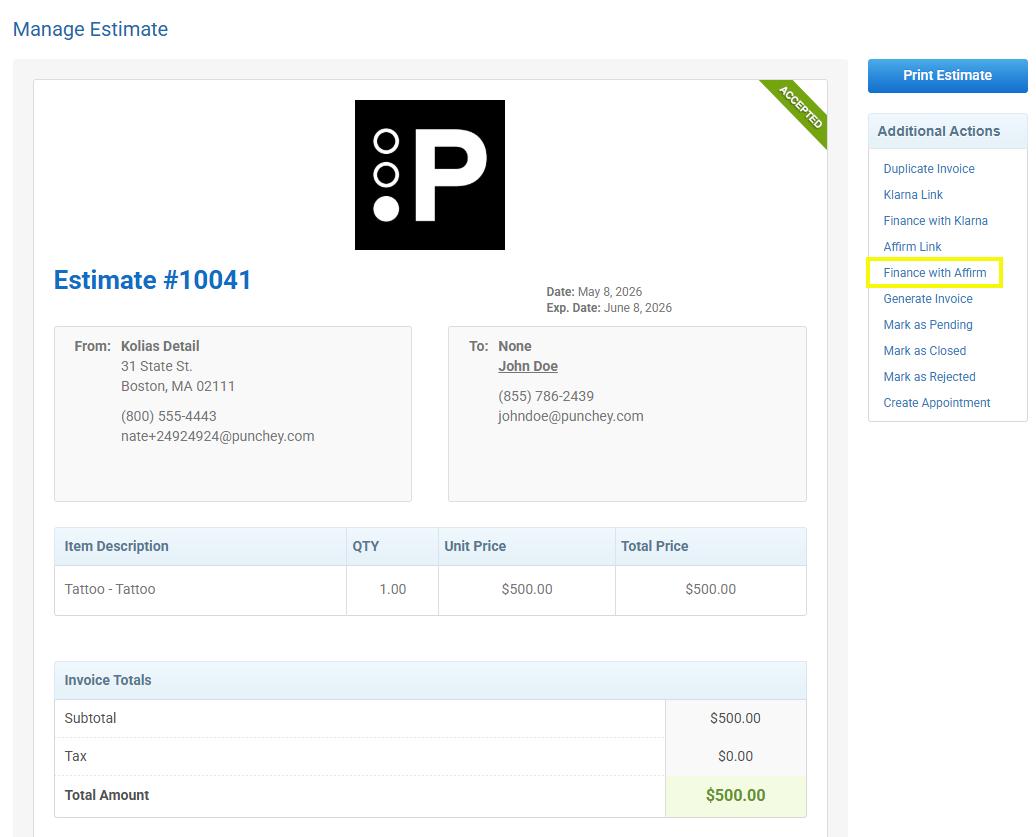
Once approved, return to the estimate in Punchey.
9. Apply Affirm Financing
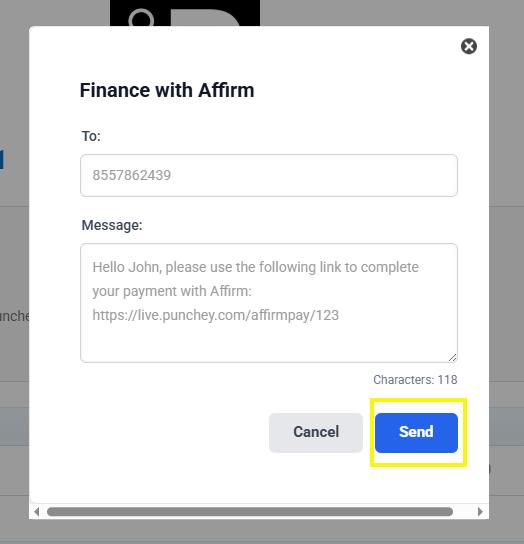
Open the approved estimate and select Finance with Affirm.
10. Send the Financing Application
Send the Affirm financing application through text message.
The customer will receive a text message from Affirm to complete their financing application.
Financing Statuses
After the customer submits their financing application, you may see one of the following statuses:
Financing Approved
The customer’s financing application was approved by Affirm.
Once approved:
Go to the Estimates tab
Select the approved estimate
Click Convert to Client Credit
After converting the financing into client credit:
The Affirm financing payment can be verified in the Transactions tab
The transaction status will appear as Affirm Captured
The customer’s available credit can then be used during checkout
Financing Denied
The customer’s financing application was not approved by Affirm.
Affirm determines approvals based on their internal review process, and financing will not be available for that transaction.
Review Submitted Estimates
Return to the Estimates tab anytime to track and manage sent financing applications.
Important Notes
The customer must approve the estimate before Affirm financing can be initiated
Customer contact details and billing address must be complete and accurate
Make sure Email Estimate is selected before sending the estimate
Double-check the service details and estimate amount for accuracy
Financing approval is determined by Affirm
Approved financing must be converted into client credit before it can be used during checkout
Need Help?
If you need assistance creating or sending an Affirm financing application, please contact our support team. We’re here to help.
Was this article helpful?
That’s Great!
Thank you for your feedback
Sorry! We couldn't be helpful
Thank you for your feedback
Feedback sent
We appreciate your effort and will try to fix the article