Overview
Punchey makes it easy to activate, top up, and check the balance of gift cards directly from the checkout screen. Using the Gift Card Manager, staff can quickly scan a gift card QR code using the Punchey SignPad App or manually enter the card number to manage gift cards during checkout.
Once activated or topped up, the gift card is immediately ready to use as a payment method.
Why Is This Important?
Managing gift cards directly at checkout helps your business:
Quickly activate new gift cards for customers
Reload existing gift cards with additional funds
Check gift card balances in real time
Speed up the checkout experience
Reduce manual entry errors using QR code scanning
Activate or Top Up a Gift Card
Follow these steps to activate a new gift card or add funds to an existing one:
Navigate to Checkout
Select Gift Card
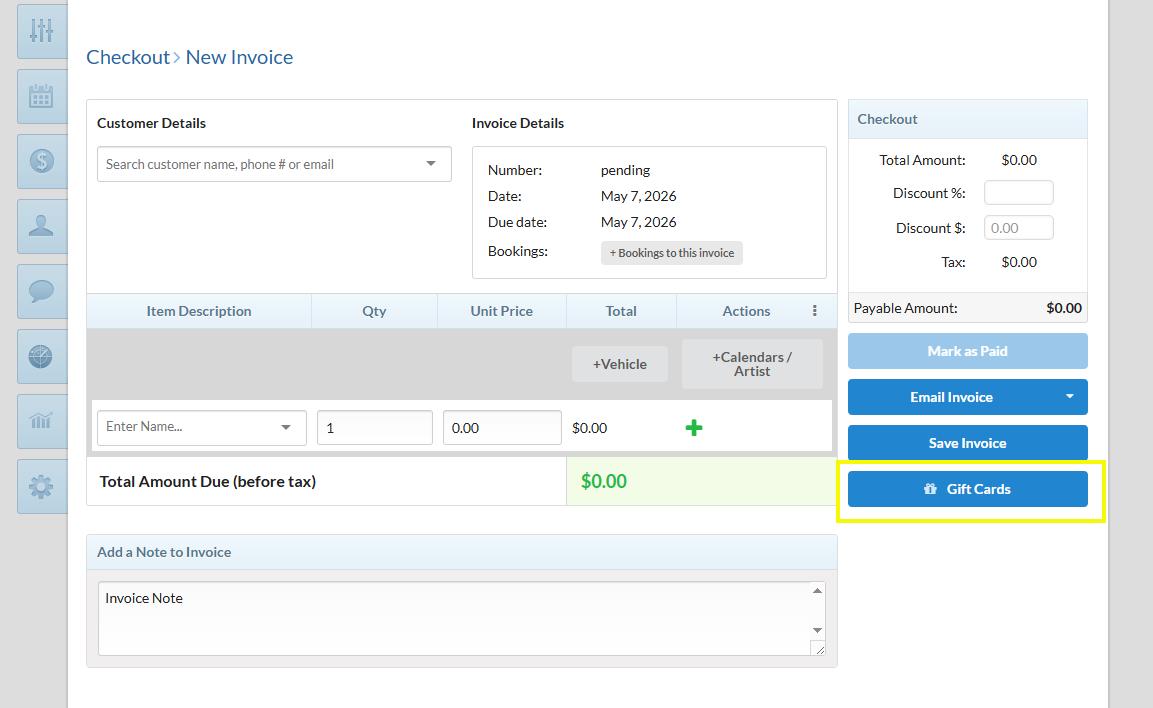
Choose one of the following options:
Initiate QR Scan to scan the gift card QR code using the Punchey SignPad App
Manually enter the Gift Card Number
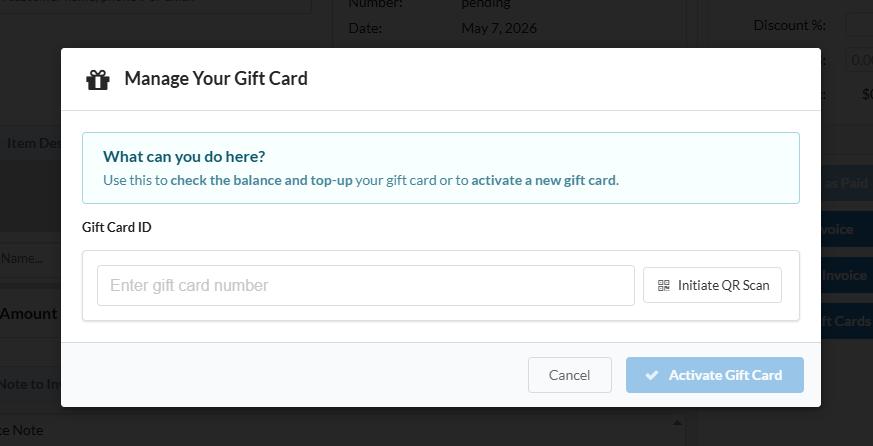
After the gift card is identified, you can:
Check the current gift card balance
Top up an existing gift card
Activate a new gift card
Enter the amount you would like to add to the gift card
Complete the process to save the changes
The gift card is now active or updated and ready to use as a payment method during checkout.
Additional Notes
QR code scanning requires the Punchey SignPad App
Updated balances are reflected immediately after processing
Was this article helpful?
That’s Great!
Thank you for your feedback
Sorry! We couldn't be helpful
Thank you for your feedback
Feedback sent
We appreciate your effort and will try to fix the article