Overview
Our SignPad technology is the first of its kind. Connect your iPad with your Punchey Admin account for a seamless, wireless experience.
How to:
1. Login with Your Administrator Account
- Open Google Chrome on your Android device and go to live.punchey.com
- Login with the Admin account details
2. Switch to SignPad Mode
- Once logged in, click on the User Account in the top right hand corner and select Switch to SignPad
Select Your Register
1. Select the Register that you would like to connected for this device from the dropdown menu.
2. Add to Home
- Tap the Share button on the browser’s toolbar — that’s the rectangle with an arrow pointing upward (on the bar at the top on iPad)
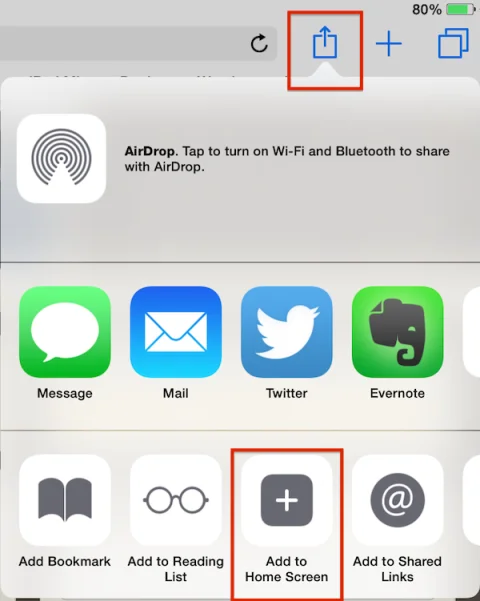
- Hit “Add to Home Screen” and name the shortcut before tapping the Add button
Saving the icon to your home screen will make it far easier and more efficient to access!
Was this article helpful?
That’s Great!
Thank you for your feedback
Sorry! We couldn't be helpful
Thank you for your feedback
Feedback sent
We appreciate your effort and will try to fix the article