- Navigate to the "Checkout" tab.
- In the Checkout tab dropdown, select "products".
- At the top you should see three blue buttons, select "Manage Tax Rate".
- Now select "+ Tax Rate" to add the desired rate.
- Fill in the following lines to complete the tax rate setup.
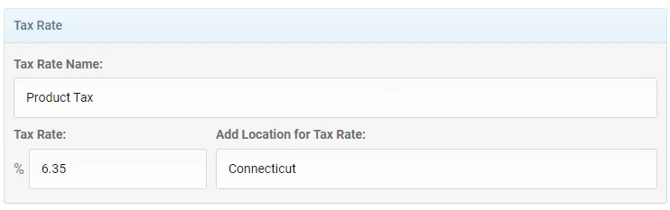
- Click "Add Tax Rate" to save.
- Now navigate to your products, or create a new product if you don't have any already.
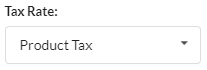
- During product creation our new tax rate will be available to choose from.
Was this article helpful?
That’s Great!
Thank you for your feedback
Sorry! We couldn't be helpful
Thank you for your feedback
Feedback sent
We appreciate your effort and will try to fix the article